Meta Ads
Run Meta ads with Superwall as your mobile measurement partner. Superwall attributes installs to your campaigns and sends conversion events back to Meta.
The Meta Ads integration makes Superwall your mobile measurement partner (MMP) for Meta campaigns. Superwall generates the links you put in your ads, attributes installs to the campaign, ad set, and ad that drove them, and sends conversion events back to Meta so it can optimize delivery. Spend and results show up in charts as ROAS, cost per trial, and cost per paid user.
This integration is separate from Meta Conversion API, which forwards subscription webhook events to a Meta Pixel.
We are gradually rolling out performance marketing. If you don't see Performance Marketing under Integrations, reach out to us at support@superwall.com and we'll enable it for your app.
Requirements
- An iOS app using SuperwallKit 4.16.0 or later. Meta Ads attribution is iOS only for now.
- Revenue tracking configured for your app.
- A Meta ad account you have admin access to, and access to Meta Events Manager.
- If you sell outside of Superwall paywalls, enable observer mode so transactions are tracked.
Attribution only applies to new installs. The SDK matches an install once, shortly after first launch, and only within 7 days of install. Users who installed your app before it shipped with SDK 4.16.0 are never attributed, so test with a fresh install.
Step 1: Set up your Meta dataset
Superwall sends conversion events to a Meta dataset. Set it up before connecting Superwall:
- Go to Meta Events Manager. If you don't have a dataset, click Connect data and follow the prompts to create one.
- Link the dataset to the ad account you'll run campaigns from.
- Generate an access token: open your dataset, go to Settings > Conversions API, and find Set up direct integration. Leave Set up with Dataset Quality API selected, then click Generate access token. Copy it for the next step.
Step 2: Connect Meta in Superwall
- 1
Open the integration
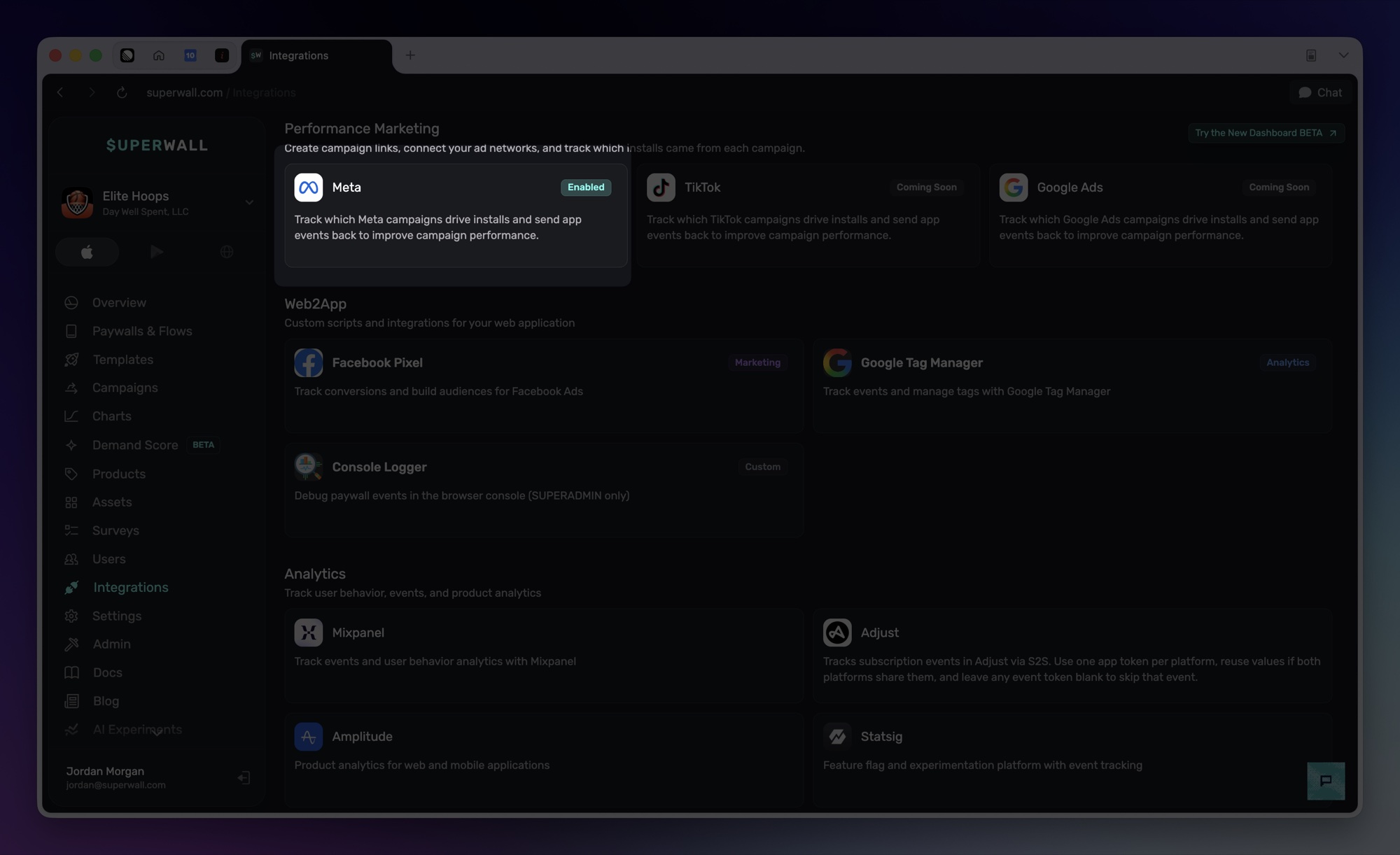
In your app's dashboard, go to Integrations, find Performance Marketing, and click the Meta card.
- 2
Connect your Meta account
Click Connect account and sign in with a Facebook account that has admin access to your business portfolio.
- 3
Choose your dataset and paste the access token
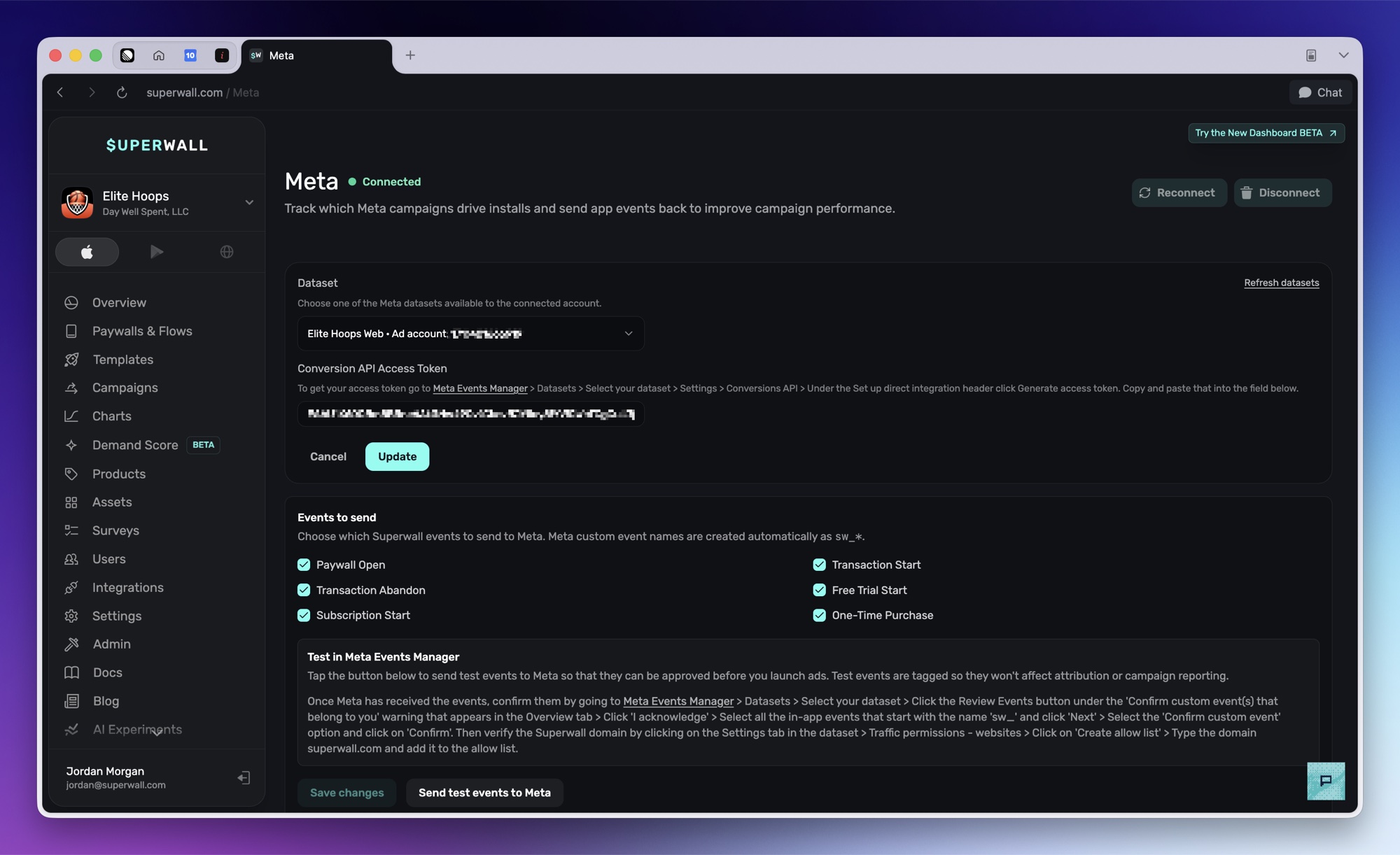
Pick your dataset from the Dataset dropdown. If it isn't listed, click Refresh datasets or paste the dataset ID manually. Paste the access token from step 1 into Conversion API Access Token and click Save. The button reads Update when you're editing an existing configuration. Superwall validates both against Meta before saving.
Step 3: Choose events to send
Superwall sends these events to your dataset. All six are on by default; leave them on unless you have a reason not to.
| Dashboard label | Superwall event | Sent to Meta as |
|---|---|---|
| Paywall Open | paywall_open | sw_paywall_open |
| Transaction Start | transaction_start | sw_transaction_start |
| Transaction Abandon | transaction_abandon | sw_transaction_abandon |
| Free Trial Start | freeTrial_start | sw_freeTrial_start |
| Subscription Start | subscription_start | sw_subscription_start |
| One-Time Purchase | nonRecurringProduct_purchase | sw_nonRecurringProduct_purchase |
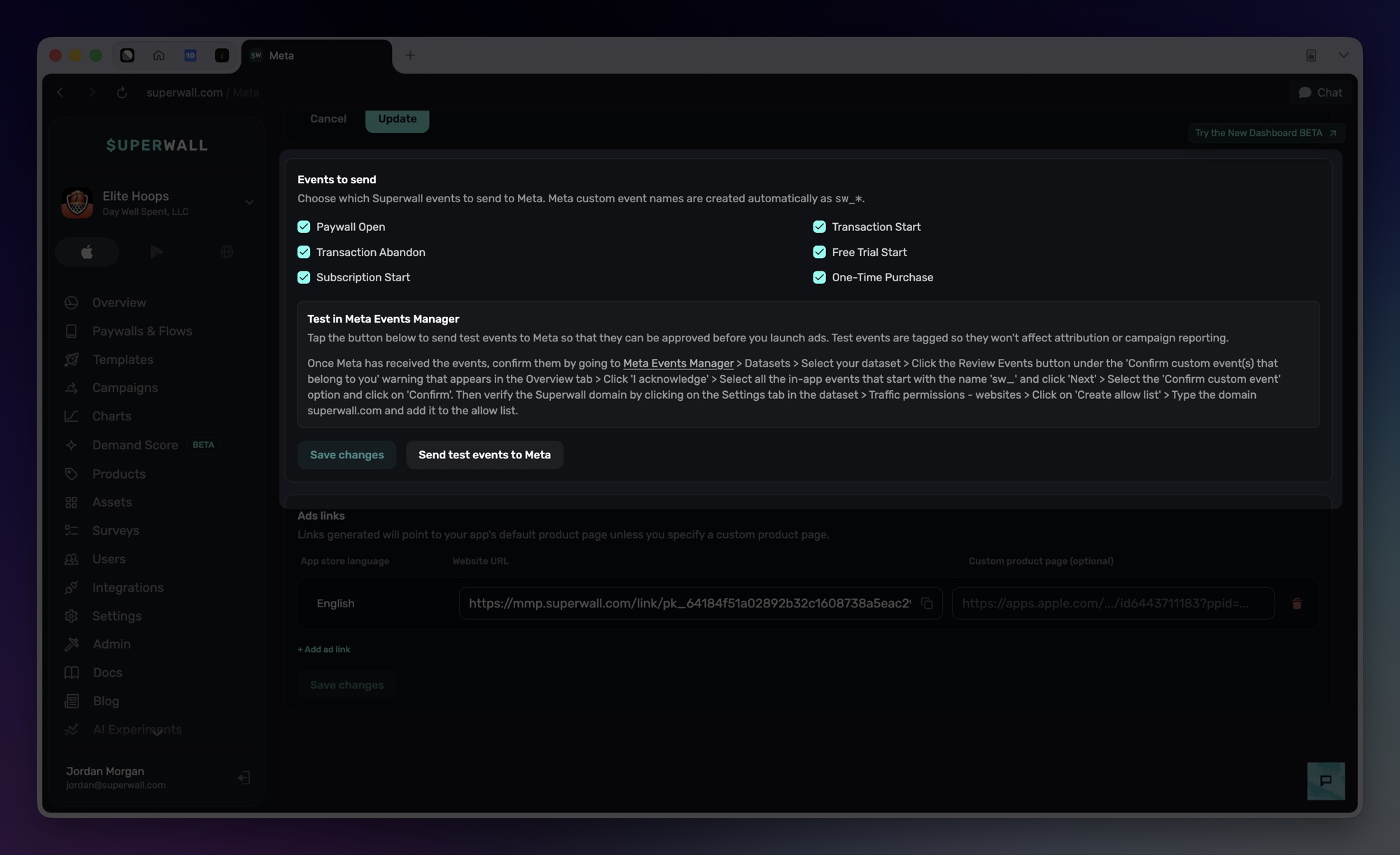
Events are sent for every user, not just users attributed to your ads. Meta uses them for delivery optimization and its own attribution.
Meta requires you to acknowledge new custom events and allow the domain they come from:
- 1
Send test events
Click Save changes, then Send test events to Meta. The button stays disabled until your event selection is saved. The events appear in your dataset's Test events tab within a few minutes.
- 2
Confirm the custom events
Once the test events arrive, open your dataset's Overview tab in Events Manager. A warning appears: Confirm custom event(s) that belong to you. Click Review events, click I acknowledge, select all events starting with
sw_, click Next, then choose Confirm custom event and click Confirm. Events can take up to 30 minutes to reach the Overview tab, and if no warning appears, the events were already confirmed.Once confirmed, the warning goes away and the
sw_events stay listed in the Overview events table under the Conversions API integration: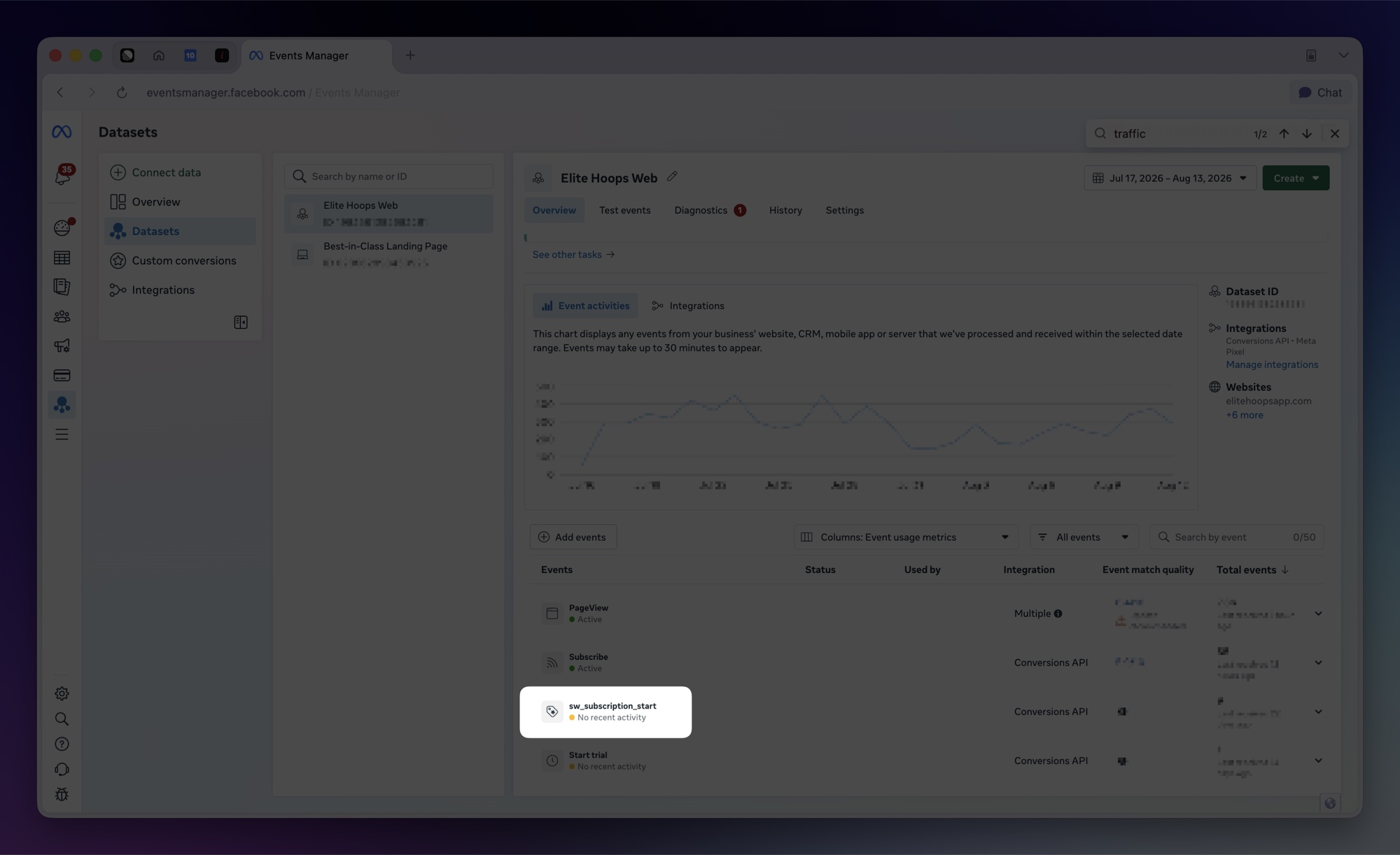
- 3
Allow the superwall.com domain
In your dataset's Settings, under Traffic permissions - websites, click Create allow list and add
superwall.com.
Step 4: Create your ad links
Under Ads links, Superwall generates the URL you'll use in your Meta ads.
- 1
Add a link
Click + Add ad link and pick an App Store language. Create one link per storefront language you advertise in. The link automatically sends people to your app's default App Store product page, so there's nothing else to fill in. Only add a URL under Custom product page (optional) if you want the ad to open a custom product page instead.
- 2
Save to activate
Click Save changes. A link only starts working after it's saved.
- 3
Copy the link
Click the URL in the Website URL column to copy it. It already includes the parameters Meta fills in with your campaign, ad set, and ad details, so don't edit them.
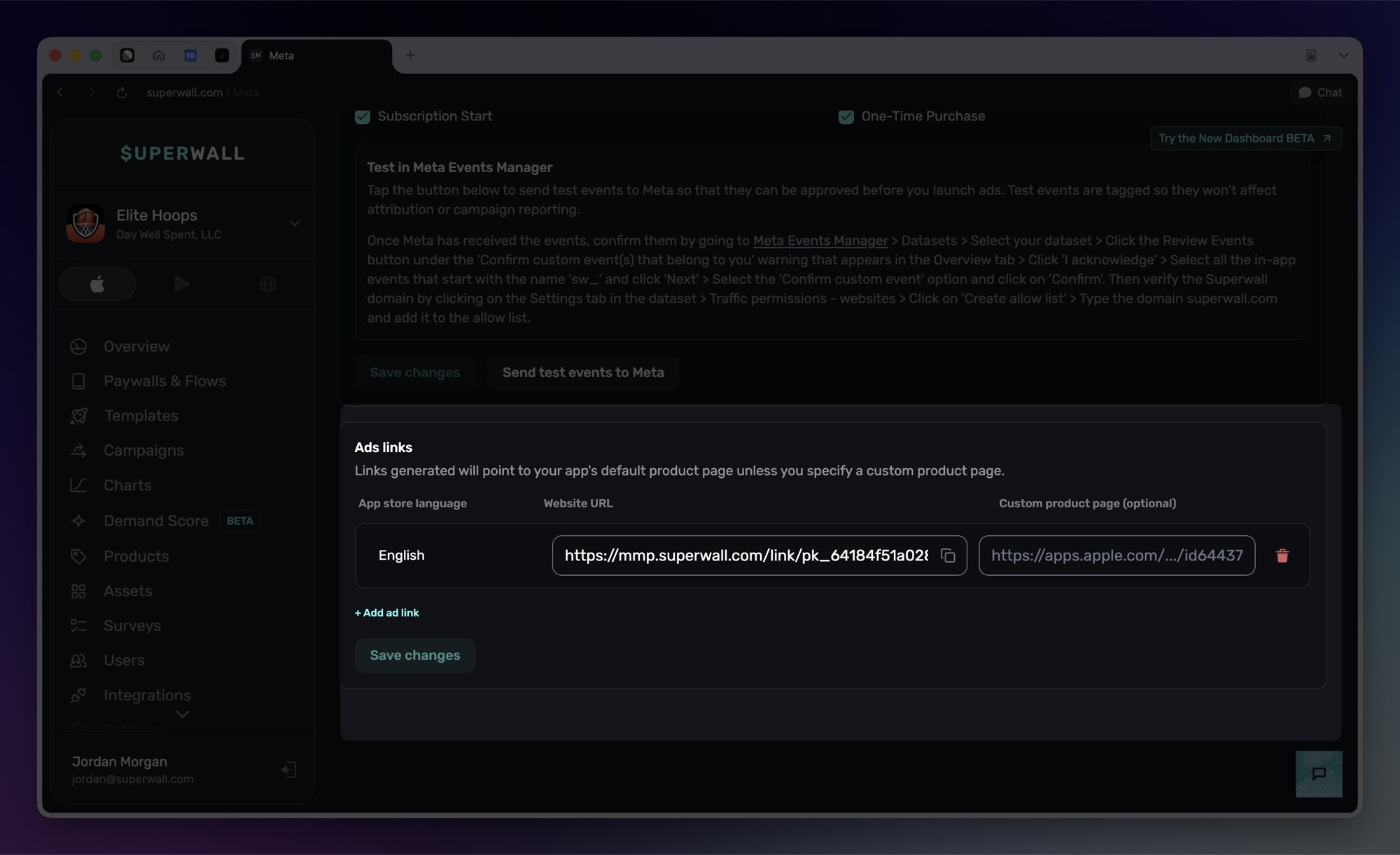
Deleting or disabling a link immediately breaks any live ads pointing at it. Keep links in place while campaigns are running.
Step 5: Create your Meta campaign
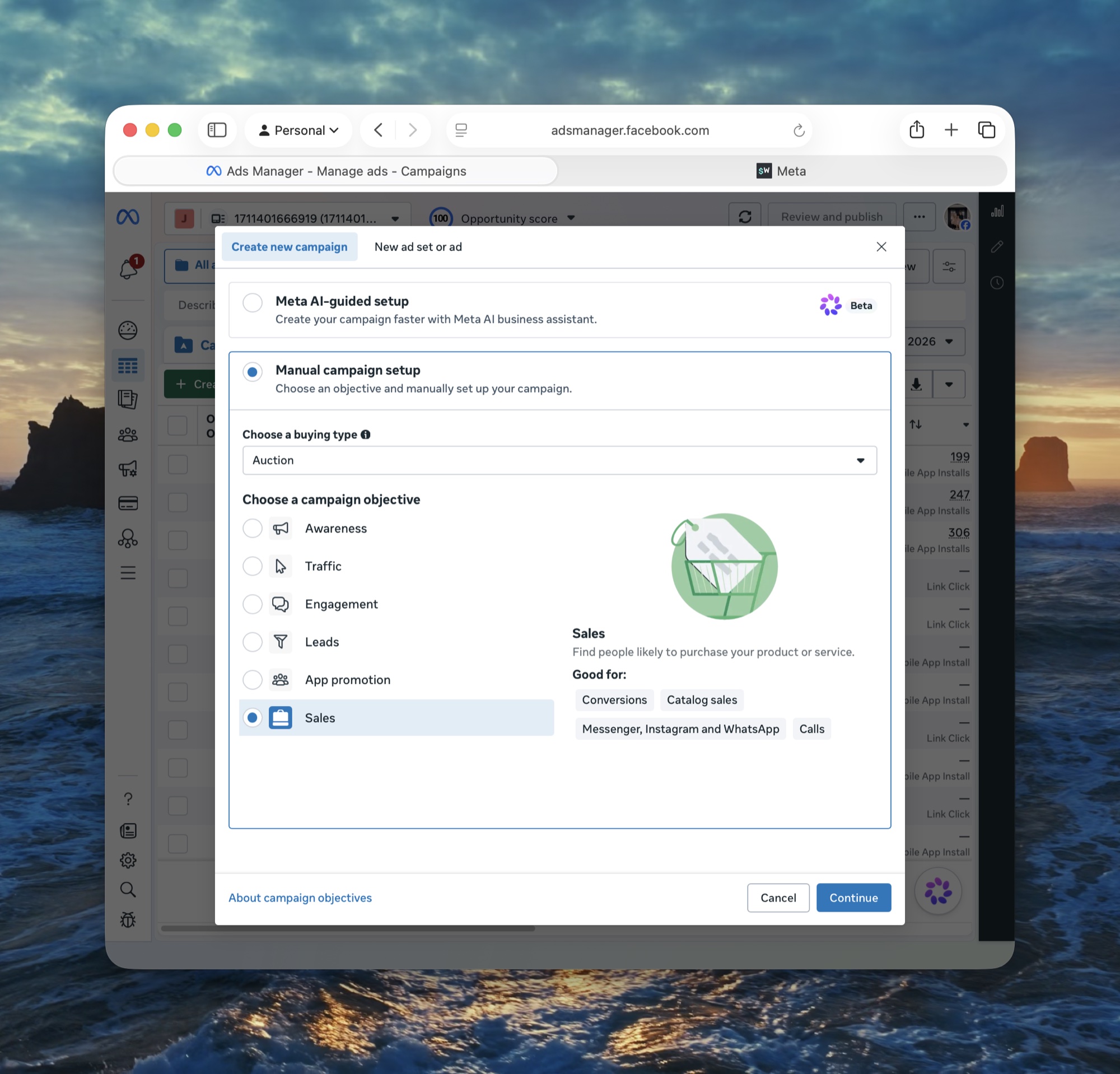
Superwall ad links are website links. That means you'll run a Sales campaign with a website conversion location, not an App Promotion campaign, even though the goal is installs. When someone taps your ad, the link records the click and sends them straight to the App Store.
- 1
Create a manual Sales campaign
In Ads Manager, click Create and choose the Sales objective. Set the campaign up manually; don't use Meta's AI-assisted setup.
- 2
Point the ad set at your dataset
Set Conversion location to Website. Choose your dataset and the conversion event to optimize for. We recommend
sw_transaction_start, since starting a transaction signals purchase intent.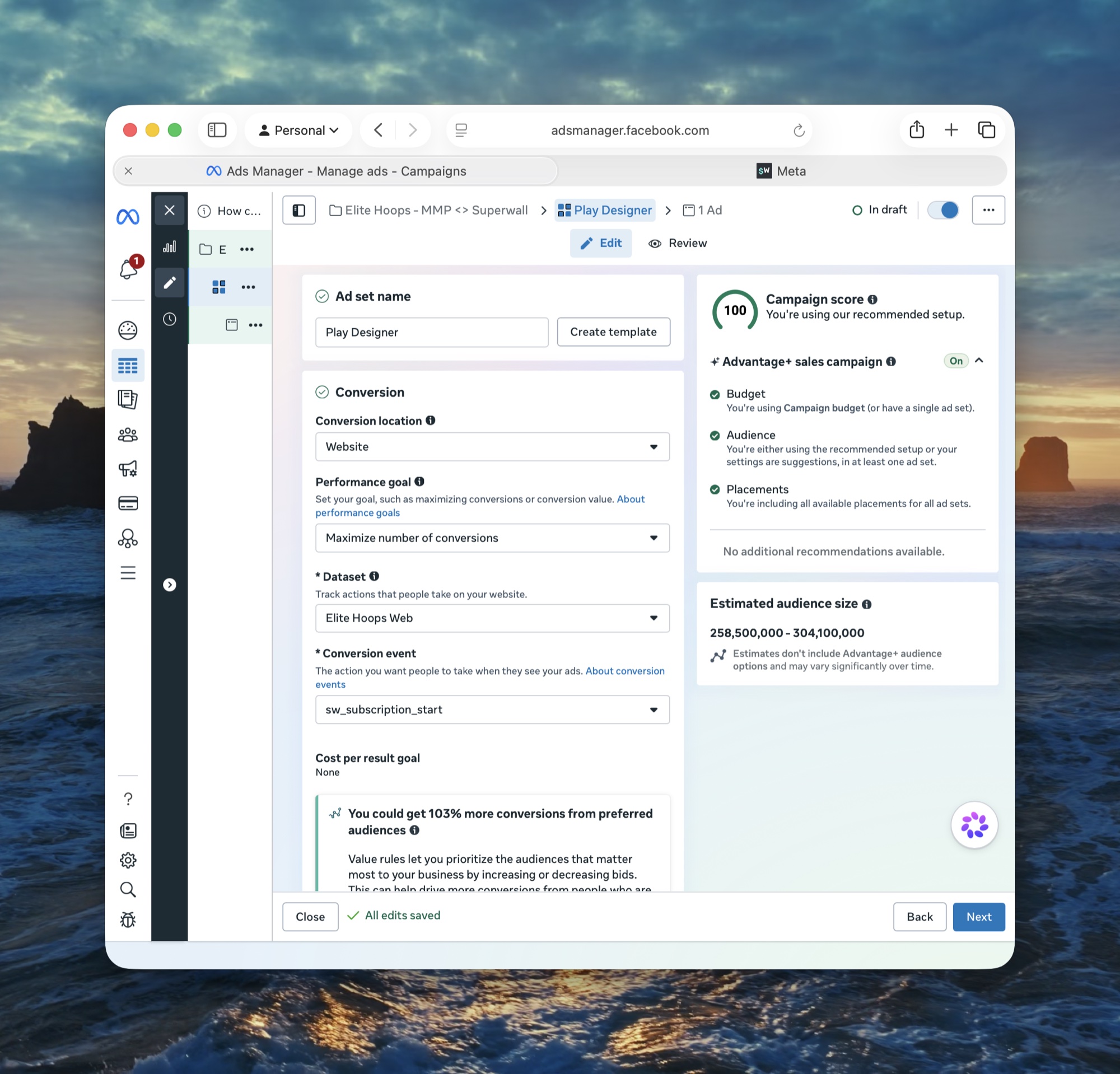
- 3
Restrict placements to iOS
Under Placements, click Show more settings, then limit devices to Mobile and operating systems to iOS, and turn off Audience Network.
- 4
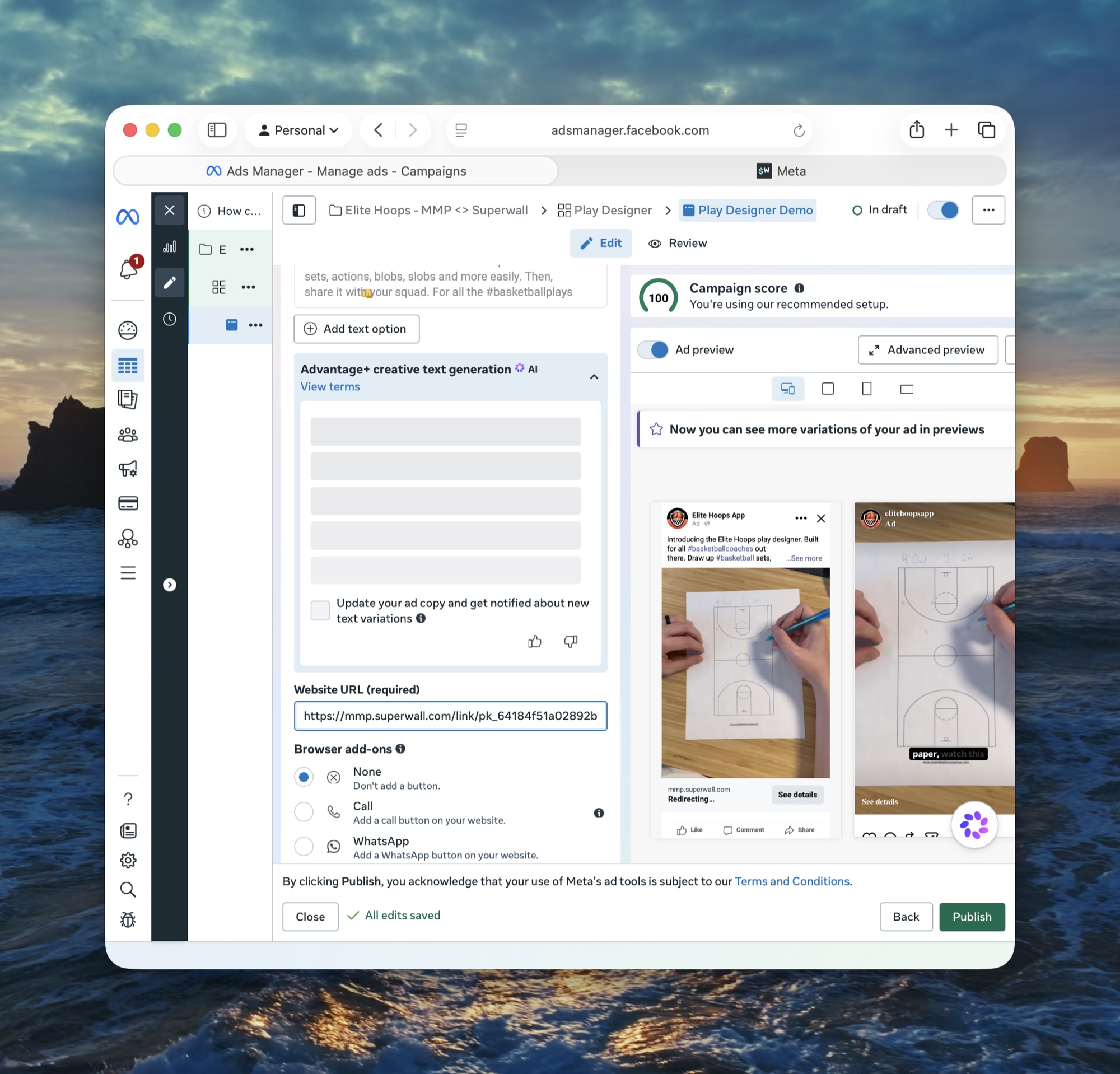
Add the link to your ad
Paste the Superwall link into the ad's Website URL field. Leave URL parameters under the ad's Tracking section empty; the link already carries them.
- 5
Publish the campaign
Click Publish to put your campaign and ads live.
Verify it's working
- Test events appear in the Test events tab of your dataset in Events Manager.
- Once ads run, attributed users appear in Superwall with
acquisition_user attributes set and anattribution_matchevent in their event stream. - The Advertising charts populate after spend syncs from Meta, which happens daily.
How attribution works
When someone taps your ad, Superwall records the click along with its IP address, device signals, and the campaign parameters Meta filled into the link, then sends them on to the App Store. When the app launches for the first time, the SDK asks Superwall to match the install against recent clicks. Matching is probabilistic: IP address, how recently the click happened, platform, language, timezone, and screen size all contribute to a score, and the install is attributed only when the score clears a threshold.
- Matching runs once per install, within 7 days of install.
- No ATT prompt or IDFA is required; matching never uses them.
- Unmatched installs stay unattributed and show as
Organicin charts.
User attributes
A matched install sets these user attributes. Attributes without a value are omitted.
| Attribute | Value |
|---|---|
acquisition_source | The network that drove the install, like meta |
acquisition_network | Same as acquisition_source |
acquisition_channel | Always paid |
acquisition_campaign_name | The Meta campaign name |
acquisition_campaign_id | The Meta campaign ID |
acquisition_ad_set_name | The ad set name |
acquisition_ad_set_id | The ad set ID |
acquisition_ad_name | The ad name |
acquisition_ad_id | The ad ID |
acquisition_placement | The Meta placement that showed the ad |
acquisition_site_source_name | Where the ad ran, like ig or fb |
acquisition_link_id | The Superwall ad link ID |
acquisition_click_id | The matched click ID |
acquisition_matched_at | When the match happened |
acquisition_app_store_language | The link's App Store language |
acquisition_product_page_id | The Custom Product Page ID, when the link uses one |
acquisition_deeplink_id | The link's deep link ID, when set |
Use them as breakdowns and filters in charts, or in audience filters to show different paywalls to users acquired from ads.
The attribution_match event
The SDK tracks attribution_match when the match request completes, matched or not.
| Parameter | Value |
|---|---|
provider | mmp, or apple_search_ads for Apple Search Ads attribution |
matched | Whether the install was attributed |
source | The network, like meta |
confidence | high, medium, or low |
match_score | The match score |
reason | Why a match failed: below_threshold, ambiguous, or request_failed |
The event and its parameters are available in charts and audience filters. It can't be used to trigger a paywall directly.
Charts
With the integration enabled, Superwall pulls campaign spend from Meta daily and adds an Advertising chart group:
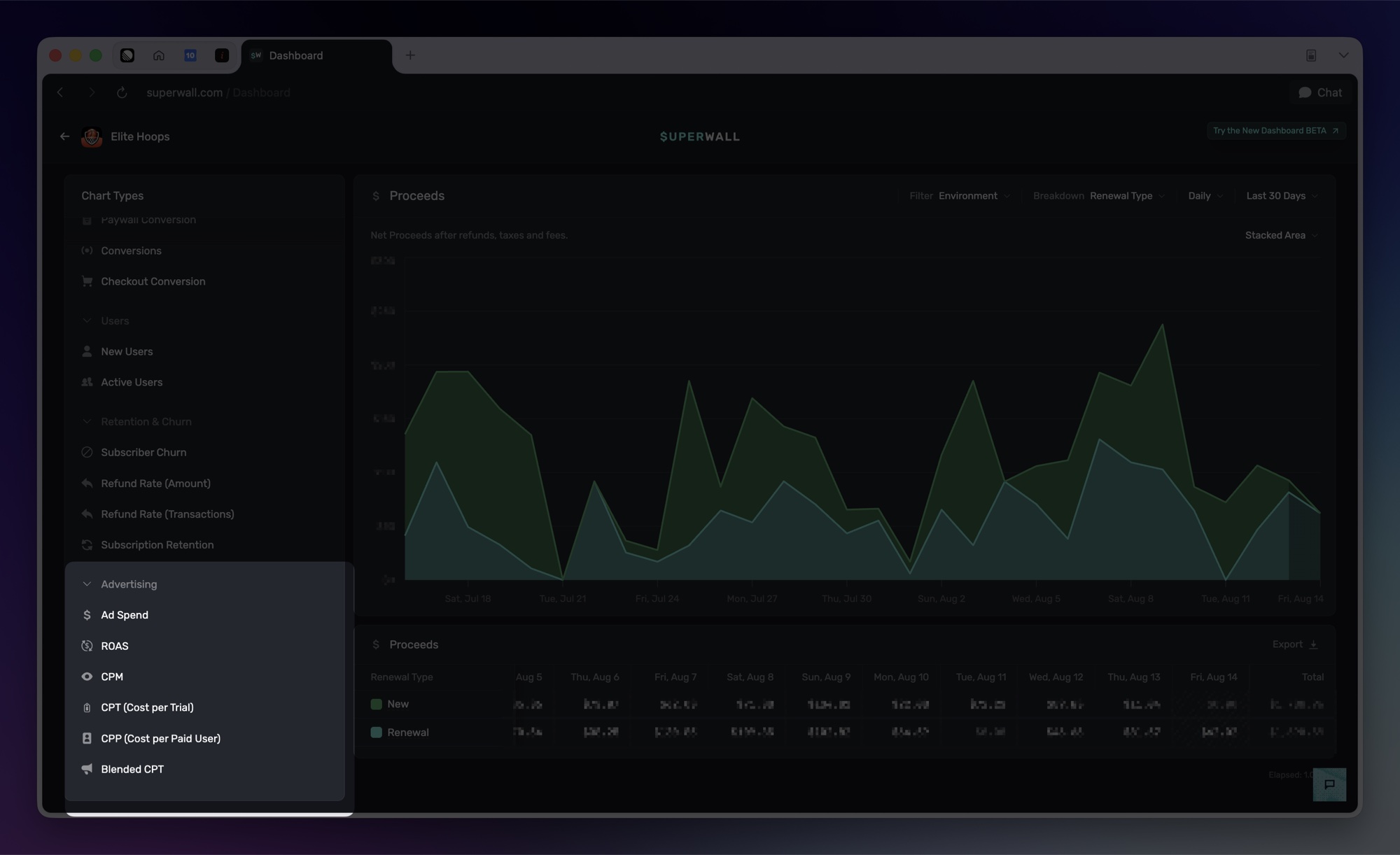
- Ad Spend
- ROAS: proceeds divided by spend
- CPM: cost per thousand impressions
- CPT: cost per trial
- CPP: cost per paid user
- Blended CPT: total spend divided by all trials, including organic
Revenue charts can also be broken down by Acquisition network and Acquisition campaign to split any metric by the campaign that acquired the user. Those breakdowns fill in as installs match; unmatched installs group under Organic.
Troubleshooting
Installs aren't being attributed
- The app must ship SuperwallKit 4.16.0 or later, and the install must be new. Delete and reinstall the app to test; updating an existing install never attributes.
- Matching only runs within 7 days of install.
SuperwallOptions.eventTrackingBehaviormust not be set to.none. That setting disables install matching entirely.- The ad link must be saved and enabled. A deleted or disabled link returns a 404 and records no clicks.
Events aren't showing in Meta
- Sandbox purchases are never forwarded. Only production events are sent to Meta; use Send test events to Meta to validate before going live.
- Confirm the dataset ID and access token still validate by editing and re-saving the configuration.
- Confirm the
sw_custom events in Review events in Events Manager. - Add
superwall.comto the dataset's website traffic allow list.
No transaction or purchase events
- If you sell outside of Superwall paywalls, enable observer mode.
- Check that revenue tracking is configured. Subscription events come from App Store server notifications.
How is this guide?